

Dynamic — editable, with tracking

Event QR code

Add an event straight to the scanner's calendar.

An event QR code shows your event details and lets people add it to their calendar in one tap. If the time or venue changes, update it once and every printed invitation shows the new details.

  • Add to calendar in one tap
  • Update time or venue after printing
  • Reuse the same print for recurring events
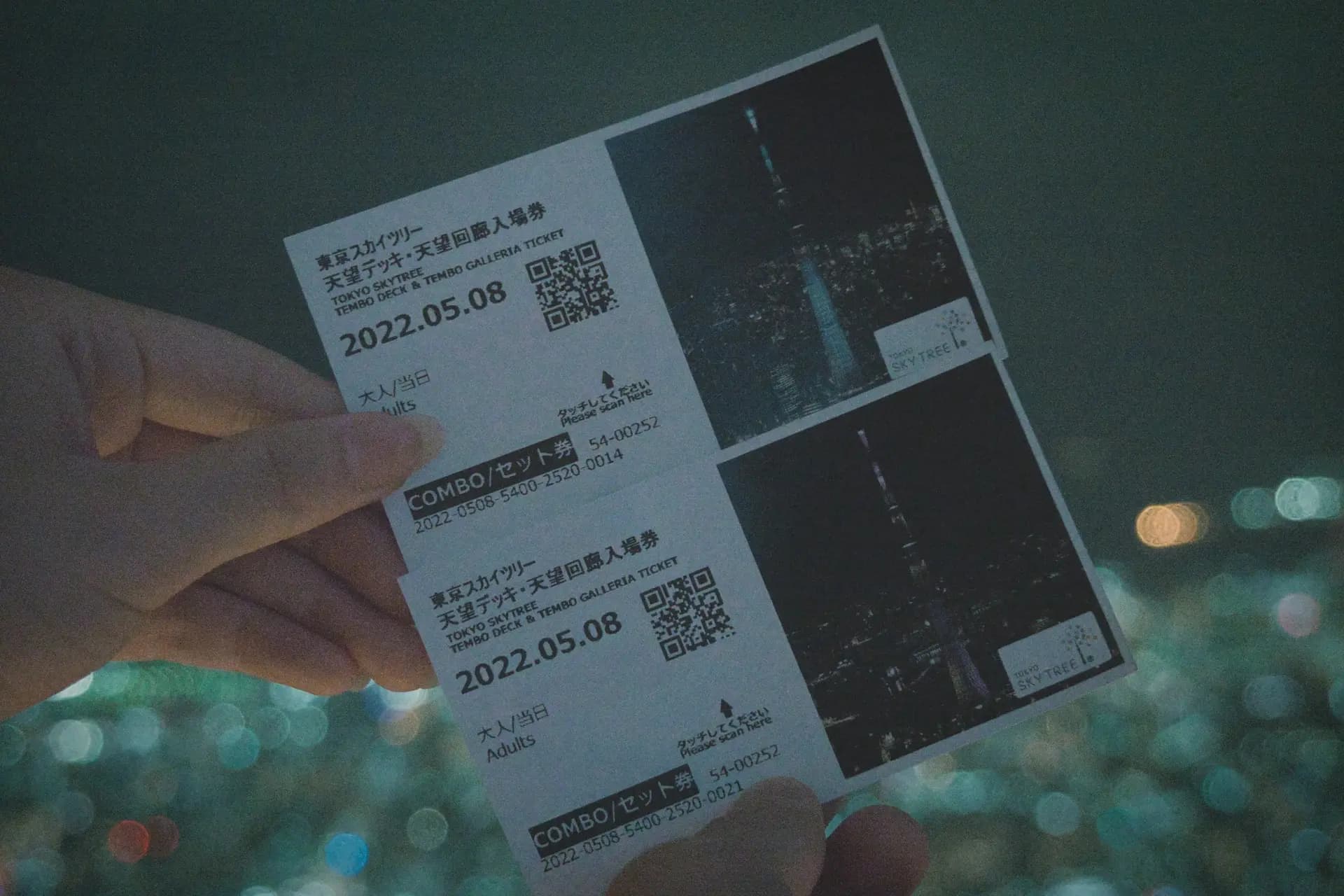
Two printed event tickets with QR codes held up at night.

Try it

See a event QR code in action

Sample content so you can see what a scan looks like — this type only exists as a dynamic code, so the code shown to real visitors always points at your own account's live link.

Create your Event QR code

Corner Café — Open Mic Night

Saturday, September 12 · 7:00 PM – 9:30 PM

Sign up at the counter, sets start at 7.

148 Main St, Portland, ORAdd to calendar

How it works

What happens when someone scans a event QR code

  1. 1

    The camera decodes a short link, resolved by the redirect route to this platform's hosted event page.

  2. 2

    The page shows the event title, description, location, and start/end time, formatted in the scanner's own timezone.

  3. 3

    An 'add to calendar' action on the page hands off to the person's calendar app to save the event — the hosted page itself doesn't send invites or manage an RSVP list.

Examples

Where to use a Event QR code

Real places a Event QR code earns its spot — each links to a full guide for that material.

Fit

Is a event QR code the right choice?

Use it when

  • Invitations, posters, or programs where you want makes-it-to-the-calendar to be a single tap instead of manual entry.
  • Events with details still being finalized — venue, start time — since anything can be corrected up until the event happens, with every printed copy reflecting the update instantly.
  • Recurring or annual events reusing the same printed material year to year, updating just the date each time.

Consider another type when

  • If you need actual RSVP tracking, guest lists, or ticketing — this type gets the event onto a calendar, it doesn't manage attendance.
  • A permanent, unchanging event detail you're fine baking directly into print — unlikely for most events, but if the date truly never needs correction, the overhead of a dynamic code isn't buying much.
  • Multi-session conferences needing a different code per session — this type represents one event; a multi-session program would need one code per session or a Landing Page linking out to each.

Dynamic vs. static

Dynamic vs. static event QR codes

Event is dynamic-only, because the whole value is being able to correct a detail — a moved venue, a delayed start time — for everyone who's already scanned the code, right up until the event happens. A static payload would freeze those details the moment it's printed, defeating the purpose for anything but an event where literally nothing could conceivably change.

A wall plastered with stickers and posters, including a large printed QR code.

Under the hood

How the calendar hand-off actually works

The 'add to calendar' action generates a standard .ics calendar file (or platform-specific calendar link, depending on the visitor's device) built from your title, description, location, and start/end times at the moment it's tapped — not baked in ahead of time. That means if you correct the start time an hour before the event, anyone tapping 'add to calendar' after that point gets the corrected time; only people who already added it to their calendar before the change would need to re-check manually.

One tap, onto a real calendar

The core job here is removing the gap between "I want to remember this" and "this is actually on my calendar." Manually adding an event from a poster means typing the date, time, and location by hand into a phone — this type turns that into one tap, pulling structured data straight from what you've entered rather than what someone can transcribe correctly under time pressure.

An honest limitation

Because the calendar entry is generated fresh each time someone taps "add," a late change reaches everyone who scans or re-adds after the edit — but not the people who already saved the old version to their calendar before you changed it. For a significant, late change (a moved venue, say), pairing the code update with a direct announcement to anyone who already RSVP'd elsewhere is worth doing.

Step by step

How to create a event QR code

  1. 1

    Set the title and start time

    Start time is required; end time is optional but recommended so the calendar entry has a real duration instead of defaulting to an instant.

  2. 2

    Add location and description

    A full address helps calendar apps offer directions automatically; the description is a good place for parking or entry instructions.

  3. 3

    Keep details current as the event approaches

    Correct the venue or time anytime before the event — every scan after your edit reflects the update.

Event QR code FAQ

Does this collect RSVPs?
No — it adds the event to the scanner's own calendar app. There's no attendee list or headcount tracked by this type.
What if I change the venue after some people have already scanned?
The hosted page shows the corrected venue immediately for any new or repeat scan, and anyone adding to their calendar after your edit gets the new details. People who already saved it to their calendar before the change would need to check back manually — worth a follow-up announcement for a late, significant change.
Does the calendar entry work on both iPhone and Android calendar apps?
Yes — the generated event data follows the standard calendar format both platforms' native calendar apps understand.
Can I reuse the same code for next year's event?
Yes — update the date and any other details from your dashboard; the printed code and short link stay the same.

Related QR types

Where people put this code

Create your event QR code

Free to generate, free to download — no account required to try it.

Create your Event QR code